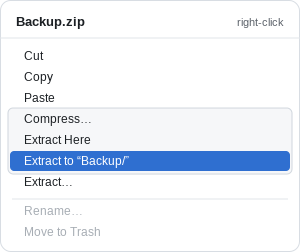
Right-click in the file list: Compress… sits directly below Paste, and on an archive the three Extract commands follow it. Everything runs inside Kata Shell — no other app or command-line tool is involved — and in the background, in the File Operations window, like a paste.
| You want to | Use | Section |
|---|---|---|
| Send files to someone, on any computer | Compress…, ZIP | Compressing |
| Make the smallest archive, for Linux or 7-Zip | Compress…, tar.xz | Choosing a format |
| Fit a large folder on a FAT32 stick, or send it in pieces | Compress…, Split | Splitting into parts |
| Be sure the archive is sound before you send it | Verify, on by default | Verifying |
| Unpack a download | Extract to “Name/” | Extracting |
| Fix garbled names from an old Windows ZIP | Extract…, Names | Choosing where, and fixing names |
| Put back a 7-Zip archive that came in parts | Right-click any part | Archives in parts |
Compressing
Select what you want in the archive — files, folders, or both — right-click and choose Compress…. The dialog only decides; nothing is written until you press Compress.
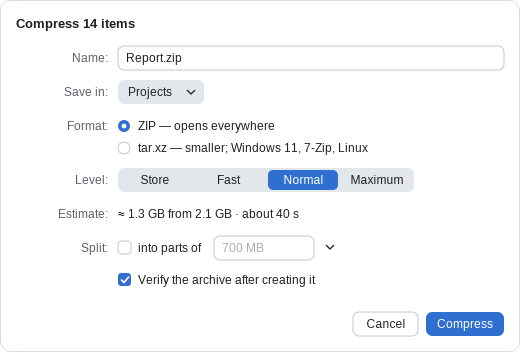
- Name — the item you right-clicked, with its extension replaced, as Explorer does:
Report.pdfbecomesReport.zip, a folderPhotosbecomesPhotos.zip. If that name is taken, " (1)" is added. Type any name you like; the extension is added if you leave it off. - Save in — the folder you are browsing, or Other Folder… to choose another.
- Format, Level and Split — below.
- Estimate — how large the archive will be and how long it will take; see The estimate.
- Verify the archive after creating it — see Verifying.
Kata Shell remembers your format, level, part size and Verify for next time. It does not remember the name, or whether you split — a one-off split shouldn't surprise your next archive.
Choosing a format
| Format | Choose it when | Who can open it |
|---|---|---|
| ZIP — opens everywhere | The recipient's computer is unknown | Windows, macOS, Linux, phones — every system, with nothing to install |
| tar.xz — smaller | The recipient uses Linux or 7-Zip, or size matters most | Windows 11's own Explorer, 7-Zip, macOS, Linux |
tar.xz is smaller because it compresses everything as one stream: what one file shares with the next — the same words, the same code — is stored once. A ZIP compresses each file on its own, so that any file can be taken out without unpacking the rest.
Use case — a project for a colleague on Linux. A folder of source code and documents comes out noticeably smaller as tar.xz, and their system opens it without extra software.
Choosing a level
Store, Fast, Normal (the default) and Maximum trade time for size. Normal is right almost always: Maximum is usually only a few percent smaller, and takes much longer.
- Photos, videos, music and other archives are not compressed again in a ZIP, whatever the level: they are already compressed, and trying again only costs time. They are simply stored.
- tar.xz has no Store — it is one compressed stream — and the dialog says so. Maximum on tar.xz uses a lot of memory and one processor core, so it is the slowest choice there by far; the File Operations window shows the level under its title so a long run explains itself.
What goes in, and what is left out
Everything you selected, with folders and their contents, keeping names in any language, dates, and whether a file is executable. Links are stored as links.
System clutter is left out, always: .DS_Store, Thumbs.db, desktop.ini, ._ files and
folders such as __MACOSX. That is what makes an archive made on a Mac look clean on Windows.
Hidden files you chose are kept — .gitignore and .env go in, because leaving them out would
quietly lose data.
Files open in another app
When the dialog opens, Kata Shell checks whether another app is writing to any of the files — a mail database, a log, a virtual machine, a download in progress. A file caught mid-write could go into the archive half old and half new.
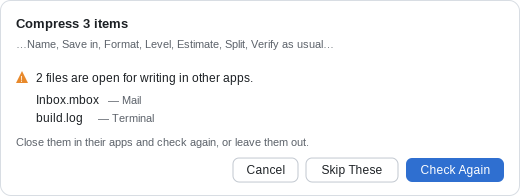
- Check Again — close the file in its app first, then press this; once nothing is open, the usual Compress button returns.
- Skip These — compress everything else; the open files are left out and listed as skipped.
- Cancel — close the dialog.
Use case — archiving your mail folder. Mail keeps its mailbox files open while it runs. Quit Mail, press Check Again, and the archive gets complete mailboxes.
Files edited after you press Compress go in as they were when you pressed it. If the archive waits behind another operation on the same disk, your later edits don't sneak in. On a USB stick or SD card formatted for Windows, where that snapshot isn't possible, a file that changed while waiting is listed as a problem instead, and Retry takes it as it is then.
The estimate
The Estimate row reads, for example, ≈ 1.3 GB from 2.1 GB · about 40 s. It starts as Measuring… and usually appears within a second; Kata Shell works it out by compressing small samples of your files, so it changes as you switch format or level. Sizes follow Settings → Formats → Sizes.
It is an estimate. For folders of text and documents, a tar.xz usually comes out smaller than estimated — sometimes by a third. A slow external disk makes it take longer than estimated; the File Operations window then shows the real time left.
When the archive probably won't fit, the dialog warns:

Free some space — empty the Trash, delete something on that disk — and press Measure Again. Compress stays available: the estimate can be wrong either way, and if the disk does fill up the operation waits for you rather than failing (Not enough space).
Splitting into parts
Tick into parts of and choose a size: type one (700 MB, 1,5 GB, or just 650 for
megabytes), or pick 100 MB, 700 MB or 4 GB (FAT32) from the ⌄ menu. The exact number of
bytes per part is shown under the field.
The parts are named Report.zip.001, Report.zip.002, … — exactly as 7-Zip names its own, so:
- on Windows, 7-Zip opens the set from its
.001file; - on Linux or macOS,
cat Report.zip.0* > Report.zipputs it back together; - in Kata Shell, right-click any part and extract — see Archives in parts.
If everything fits in one part, you get a plain Report.zip, not a lone .001, so it opens
anywhere.
Use case — a FAT32 USB stick. FAT32 can't hold a file of 4 GB or more. Choose 4 GB (FAT32): each part is the largest file FAT32 accepts.
Use case — copying over Remote Desktop. Large single files are where a transfer is most likely to break. 700 MB parts can be copied one at a time, and a failed one sent again.
The units follow Settings → Formats → Sizes. With the default Windows units, your "700 MB" parts are the same size as 7-Zip's "700M".
Verifying
With Verify the archive after creating it ticked — the default — Kata Shell reads the finished archive back before giving it its name: every file is unpacked in memory and checked against the checksum stored with it, and the list of what is inside is compared with what was put in.
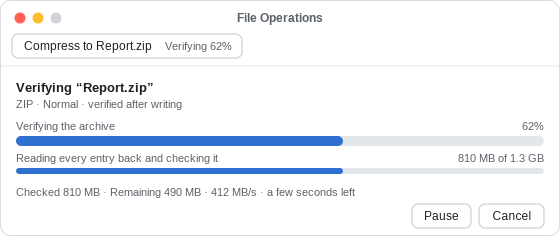
- It takes a fraction of the time compressing took — about a second for a hundred megabytes of documents.
- An archive that fails is removed, never kept under its name. The window names the file that was damaged, and every other file says it was not kept: the archive failed its check. Compress again — a second failure points to a problem with the disk.
- What it can't tell you: the check reads what your Mac just wrote, which macOS may still hold in memory. It proves the archive was made correctly, not that a failing USB stick stored it correctly.
Worth keeping on for anything you are about to send or store away — a broken archive is far cheaper to find before it travels.
While it works
The archive is made in a tab of the File Operations window — Compressing 14 items to “Report.zip”, with how it's made beneath (ZIP · Normal · in 700 MB parts · verified after writing), the same progress bars, Pause and Cancel as a paste.
- Nothing appears under the archive's name until it is finished (and verified). Until then it is a hidden file beside it.
- Cancel removes the partial archive, every part of it. Your files are never touched.
- A file that can't be read — no permission, say — is listed at the end, with Retry and Skip, as for a paste. In a tar.xz, a file that fails partway through stops the whole archive, because the format can't leave it out once it has begun; nothing is kept, and the window says which file it was.
- If the archive probably needs more space than is free, the tab says so with Measure Again while it works; Pause while you make room if you like.
- If the disk fills up, the operation waits: the tab shows about how much more is still needed and what is free. Free some space and press Measure Again — it continues where it stopped.
- When it finishes, the new archive is selected in the list.
Extracting
Right-click one archive — .zip, .7z, .tar, .tar.xz, .tar.gz, .tgz — or any part of a
split set, and choose:
| Command | Puts the contents | Choose it when |
|---|---|---|
| Extract Here | In the folder you are browsing | The archive holds one folder, or you want its files right here |
| Extract to “Backup/” | In a new folder named after the archive | Almost always — a download with loose files can't scatter them among yours |
| Extract… | Wherever you choose | Another folder, or names that need fixing |
An archive whose only top-level item is a folder is not wrapped in a second one: extracting
Project.zip, which holds Project/, with Extract to gives you Project/, not
Project/Project/.
Extracting is a paste out of the archive. Names that already exist are asked about first — Replace, Skip, Keep both — and a cancelled extraction offers Roll Back, exactly as in the File Operations window.
Files made by Finder for itself — the __MACOSX folder and ._ files in archives made on a
Mac — are not extracted.
Choosing where, and fixing names
Extract… asks where to put the contents, and whether in a new folder.
Old ZIP files from Windows can store names in an old character set, which other apps show as gibberish. Kata Shell detects the character set and shows the names correctly; when it had to guess, Extract… shows a Names row with a preview, so you can see them before extracting and pick another set if the guess is wrong.
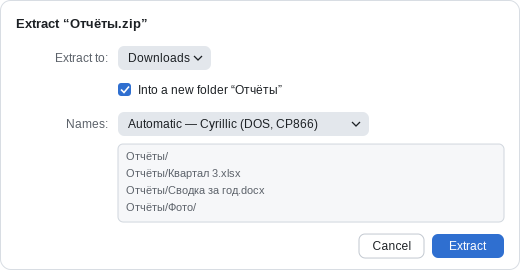
Use case — an archive from a Russian Windows PC. The names read correctly with Automatic. If a preview still looks wrong, try Cyrillic (Windows, CP1251); for Western European names, Western European (DOS, CP850).
Archives in parts
Right-click any part — Backup.7z.003, Backup.zip.001, Backup.z02 — and extract: Kata Shell
finds the other parts in the same folder and reads them as one archive. Nothing is joined into a
temporary file first, so you don't need twice the space.
Both kinds of split set are read: numbered parts (.001, .002 …, as 7-Zip makes them, for ZIP,
7z and tar.xz), and WinZip-style sets (.z01, .z02 … .zip).
A missing part is named — "A part of this split archive is missing: “Backup.7z.004”. Put it in the same folder as the others and try again."
Use case — a backup made with 7-Zip on Windows, copied over Remote Desktop. Copy all the parts into one folder, right-click any of them, and choose Extract to. A large 7z archive is unpacked with a steady, small amount of memory, however big it is.
What is refused, and why
| You see | Because |
|---|---|
| This archive is password-protected. Kata Shell does not open encrypted archives. | Kata Shell does not create or open encrypted archives. In a ZIP where only some files are protected, the rest are extracted and the protected ones are listed |
| Refused: its path leads outside the folder — and the other Refused reasons | The archive tried to place a file outside the folder you chose — through .., an absolute path or a link. A safety rule, never relaxed |
| Not extracted: larger than the archive declares | The file inflates beyond its declared size, a trick used to fill disks; it is stopped there |
| Not extracted: damaged in the archive | Its checksum doesn't match: the archive was damaged in transit |
| Compressed with a method Kata Shell can't read (Deflate64) | Windows uses Deflate64 for some very large ZIP files. Extract that one with 7-Zip |
| a hard link, a device, a FIFO | Special tar entries, refused one by one; everything else is extracted |
Apps that arrive inside a downloaded archive are still checked by macOS the first time you open them, as when Archive Utility extracts them: the "downloaded from the internet" mark is carried over to everything extracted.
Who opens what you make
| Archive | Windows Explorer | 7-Zip | macOS | Linux |
|---|---|---|---|---|
| ZIP | ✓ | ✓ | ✓ | ✓ |
| tar.xz | ✓ Windows 11 | ✓ | ✓ | ✓ |
Split into parts (.001) |
✗ | ✓ | after joining | after joining |