macOS treats a few personal folders as private: Desktop, Documents, Downloads, iCloud Drive, and also USB sticks and network drives. Every app — Kata Shell included — must ask your permission before it can look inside them for the first time.
This is a macOS rule that applies to all apps, and it is a good one. It means no app can quietly read your personal files without you knowing.
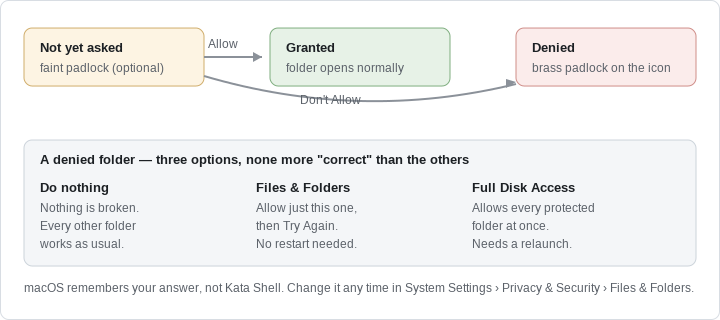
The three states
| State | What you see | What to do |
|---|---|---|
| Not yet asked | Nothing unusual until you open the folder | Opening it triggers the macOS prompt |
| Granted | The folder opens normally | Nothing — you won't be asked again |
| Denied | "macOS is protecting…" in the folder view, and a brass padlock on the folder's icon | One of the three options below, or nothing at all |
Settings → Security (details) shows all of them at once, including Full Disk Access.
When a folder is blocked
The folder view shows a clear message — "macOS is protecting…" — instead of pretending the folder is empty. From there you have three options, none more "correct" than the others:
- Do nothing. This is completely fine. Nothing is broken, and you can keep browsing every other folder as usual. Kata Shell simply can't see inside this one until you allow it.
- Open System Settings… takes you straight to Privacy & Security → Files & Folders, where you can switch on just this one folder. Come back, click Try Again, and the contents appear immediately — no restart needed.
- Open Full Disk Access Settings…, below a divider, grants access to every protected folder at once, instead of repeating this page for each one. macOS will ask to relaunch Kata Shell afterwards — that's expected, not an error, and it's the same for any app requesting this. Once granted, the page updates on its own to say a relaunch will finish the job.
Spotting a blocked folder early
A small brass padlock appears on a blocked folder's icon, in both the tree and the file list — so you can see it before opening the folder, not just after. It disappears the moment Kata Shell can read the folder again.
Right-click a locked folder for an Unlock item at the top of the menu. It simply opens the folder, exactly like clicking it normally would; it's there for discoverability — a quick way to retry a folder you already know is blocked.
By default only blocked folders are badged, matching Finder's convention of flagging problems rather than labelling every state. Settings → Security → Show all folder states turns on an open padlock for granted folders and a faint one for not-yet-asked.
Not the same as the status bar's padlock
These are two different locks and they mean different things:
| Lock | Means |
|---|---|
| Brass, on a folder icon | A permission you can grant. This page |
| Grey, in the status bar | Just how the folder is — a system folder, or someone else's home. There is nothing to unlock, and nothing is wrong |
Your choice is macOS's, not Kata Shell's
The answer is remembered by macOS itself, not by Kata Shell. You can change your mind at any time in System Settings → Privacy & Security → Files & Folders.
If you reset a permission outside the app — with Apple's tccutil, say — Settings → Security →
Refresh Status re-checks, and may bring the system prompt back. That is expected, since you asked
for the check.