Nothing on the Ribbon is ever clipped or hidden without a way to reach it. When the window gets too narrow, whole groups move into a chevron (›) menu — and which group goes first is a fixed priority order, not whatever happens to be on the right.
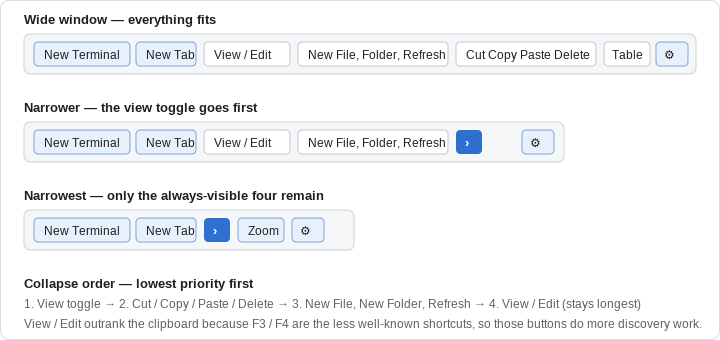
Whole groups, never single buttons
The Ribbon is divided into groups by thin vertical lines — the same way a traditional desktop ribbon groups its buttons. Overflow moves a whole group at a time.
Half a group on the Ribbon and half in a menu would be worse than either: you would have to check both places to find one button.
The priority order
Groups collapse from the right, lowest priority first:
- The view toggle (Preview/Table) goes first.
- Clipboard actions (Cut, Copy, Paste, Delete) next.
- General actions (New File, New Folder, Refresh) next.
- View/Edit stay on the Ribbon longest.
View/Edit outrank the clipboard on purpose. F3 and F4 are less well-known shortcuts than ⌘C and ⌘V, so those buttons are doing more discovery work — someone who doesn't know about the clipboard shortcuts is rare; someone who doesn't know about F3/F4 is not.
Always visible
New Terminal, New Tab, Zoom and Settings never collapse.
The chevron menu
Click it to reach any collapsed action. The menu lists them with their names and icons, and greys out any that aren't currently available — exactly like the Ribbon itself, so an action's availability never changes just because it moved into a menu.
Widen the window and the groups come back in order. The chevron disappears once everything fits.
The window narrows the same amount either way
The window can be made just as narrow whether the active tab has many buttons or few. A folder tab shows a dozen buttons and a terminal tab shows one, but neither sets a different minimum width — so resizing never behaves differently depending on which tab you happen to be on.