The tree and the file list
- Click the arrow (▸/▾) next to a folder in the tree to expand or collapse it.
- Click a folder's name in the tree to open it on the right.
- In the file list, single-click to select (highlighted blue, matching the tree), double-click to open.
The tree always keeps exactly one folder highlighted — your current location. The highlight is blue when the tree has keyboard focus and grey when the file list does, so you can always see both where you are and which side the keyboard is driving.
Collapsing a folder you are currently inside moves the highlight up to that folder and opens it — the file list and address bar follow — just like Windows Explorer.
Why the two panes stay in step, and when they deliberately don't, is Tree and content.
Opening a slow folder
Most folders open instantly. If one takes a moment — a folder with a lot of files, or one on a slow or network drive — the file list shows a spinner and the folder's path instead of leaving the previous folder's contents on screen, so it's always clear a new folder is on its way rather than already showing.
Opening a folder elsewhere
The last three items of the right-click menu take a folder somewhere else: Open a New Tab, Open a New Terminal and Open in Finder. What they act on depends on where you click:
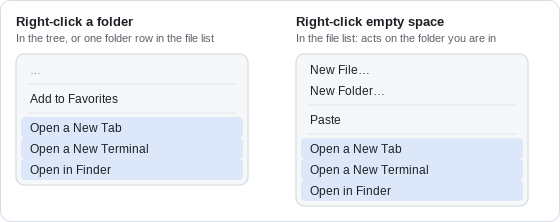
| Right-click | The three items act on |
|---|---|
| A folder in the tree | That folder |
| A single folder in the file list | That folder |
| Empty space in the file list, below or between the rows | The folder you are browsing |
| Several selected items | Nothing: the three items are not offered |
Right-clicking empty space clears the selection first, as in Finder and Windows Explorer, so the menu is plainly about the folder you are in. To Cut, Copy or Trash selected items, right-click one of them instead; that keeps the whole selection.
The three items appear even in a folder you cannot change, such as /System, because none of them
changes anything.
Open in Finder
Opens a Finder window on the folder. If Finder already has a window showing it, that window comes to the front instead of a second one opening.
Apps are shown, not started. An app such as Numbers.app is a folder underneath, so the menu
offers Open in Finder on it. Finder then opens the folder containing the app, with the app
selected; the app itself does not launch. The same goes for other items that are folders underneath
but act as one file, such as an .rtfd document or an Xcode project.
If the folder has been moved or deleted since the menu opened, Kata Shell says so instead of opening the wrong place.
Hidden files
Files and folders whose names start with a dot (.resolve, .git) are not shown, matching
Finder's default.
Keyboard navigation
Click into the tree or the file list once to give it focus, then:
| Key | Does |
|---|---|
| ↑ / ↓ | Previous / next item |
| Home / End | First / last item |
| Page Up / Page Down | Jump by a screenful |
| → / + (tree only) | Expand a folder, or move into its first child if already expanded |
| ← / − (tree only) | Collapse a folder, or move to its parent if already collapsed |
| Enter | Open the selected item — same as double-clicking |
| Backspace | Go up one level |
| Tab / Shift+Tab | Jump focus between tree and file list |
| any letter | Jump to the next item starting with it |
Tab lands with the selection already visible — whichever side you arrive at shows its existing selection highlighted immediately, no extra click needed.
Tab means something else in a terminal or editor tab: there it belongs to shell completion or to inserting an indent. See Terminal and the editor.
Arrow keys in the tree: live or highlight-only
In the tree, arrow keys can either navigate as you move (matching a single click) or only move a highlight until you press Enter (matching the file list's click-vs-double-click split).
Settings → File Tree switches between Arrow Keys Navigate Live and Arrow Keys Highlight Only.
Changes made outside Kata Shell
Kata Shell watches the folders it is showing, so anything added, removed or renamed — in Terminal, in Finder, by any app — appears straight away, with no refresh.
A few changes are invisible to that mechanism, because they alter a file itself rather than the folder containing it:
- Marking something hidden (
chflags hidden) — it quietly drops out of the listing. - Changing a file's permissions.
- A program rewriting a file's contents in place.
These catch up the moment you switch back to Kata Shell. When the app becomes active again it re-checks the folder you are browsing and every folder currently expanded in the tree, and updates anything that drifted. So the usual sequence — run something in Terminal, click back — shows the correct picture on arrival.
Nothing is re-read while you are away, and folders you are not looking at are never checked.
Long names and part-full lists
Names too long to fit are truncated with "…" — hover to see the full name in a tooltip. If a list holds more items than fit, the bottom is left blank rather than showing a half-cut row; scroll down for the rest.