Kata Shell's tabs are not interchangeable. There are three kinds, and the differences between them explain several rules that otherwise look arbitrary.
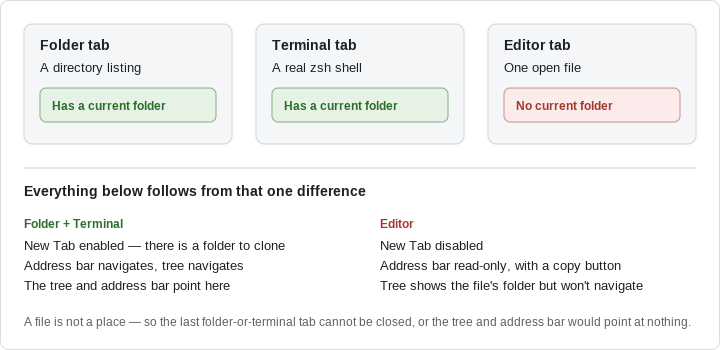
What each one is
| Tab | Holds | Has a "current folder"? |
|---|---|---|
| Folder | A directory listing, in Table or Preview mode | Yes — the folder it shows |
| Terminal | A real zsh shell | Yes — wherever the shell has cd'd to |
| Editor | One open file, viewing or editing | No — a file is not a place |
That last column is the one that matters. Almost every difference in behaviour follows from it.
What follows from "no current folder"
Because an editor tab has no folder:
- New Tab is disabled while one is active. There is no folder to clone.
- The address bar becomes read-only — it shows the file's full path with a copy button instead of clickable breadcrumbs, because there is nothing to click through to.
- The tree stops navigating. It shows the folder the file lives in, but clicking elsewhere won't change what's open.
- The status bar reports the file's name and size instead of a folder and item count.
Why one folder or terminal tab always stays open
The tree and the address bar need somewhere to point. They navigate a folder tab or a terminal tab — never an editor tab. If you could close the last one, both would be left describing nothing.
So the last folder-or-terminal tab's × is dimmed; hover or click it and Kata Shell explains why.
Editor tabs are never affected. You can always close an open file, however many are open, because closing one never leaves the tree and address bar homeless.
What each kind remembers
| Tab | Remembers |
|---|---|
| Folder | Selection, list and tree scroll position, column widths, Preview divider position, previewed document's scroll position and image zoom, Table-vs-Preview mode |
| Terminal | Full scrollback, running programs, its own text size |
| Editor | View-vs-Edit mode, unsaved changes, its own text size |
All of this lasts while the app is running. A fresh launch starts clean.
Settings that are global rather than per-tab — column visibility, date format, fonts, Ribbon placement, UI scale — are remembered between launches instead.
Table-vs-Preview is per tab; column visibility is global. These two look like the same kind of setting and are not: the mode is about what this folder is for, while the columns are about how you like to read a listing at all.
Protection across tabs
An open editor tab protects its file — and the folder holding it — everywhere in the app, not just in the tab you are looking at. Rename, Cut and Move to Trash are greyed out with an explanation naming the open file.
Move to Trash goes further and is blocked on any folder above an open file, however deep, because deleting a folder destroys everything inside it and there is no way to point the tab somewhere else afterwards.
Details in Creating, renaming and deleting.