Kata Shell has two views of the same filesystem, and one of them always leads. Knowing which explains most of what the tree does.
The rule
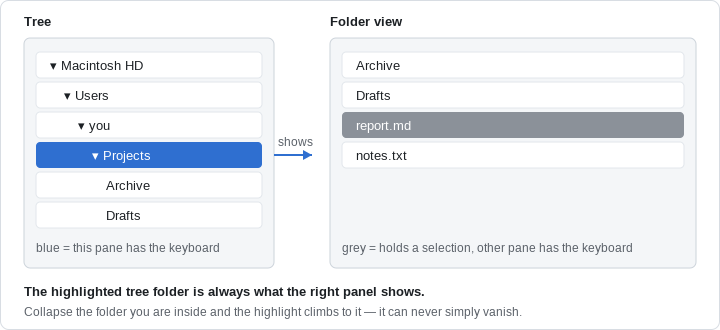
The tree always has exactly one folder highlighted, and that folder is what the right-hand panel is showing. Nothing you can do leaves the two disagreeing.
That is why:
- Clicking a folder in the tree opens it on the right.
- Collapsing a folder you are currently inside moves the highlight up to that folder and opens it — the panel and address bar follow. The highlight cannot simply vanish, so it climbs to the nearest folder still visible. Windows Explorer does the same thing.
- Navigating on the right — double-clicking into a subfolder, pressing Backspace — moves and expands the tree to match.
Which side has the keyboard
Both panes can hold a selection at once, so the highlight is colour-coded:
| Highlight | Means |
|---|---|
| Blue | This pane has keyboard focus — arrow keys drive it |
| Grey | This pane holds the current location, but the other pane has the keyboard |
Tab moves focus between them, and the selection is already visible when you arrive.
The terminal leads too
A terminal tab participates in exactly the same rule, with the shell as the thing being followed:
cdby hand and the tree highlights and expands to your new location on its own.- Click a folder in the tree while a terminal tab is active and the shell
cds there.
So the tree is never "out of date" relative to a terminal — it is showing where that shell actually is.
The one case where the tree deliberately doesn't lead
While an editor tab is active, the tree shows the folder the open file lives in — but clicking elsewhere in the tree won't change what's open.
There is nothing to navigate to from an editor tab: an open file is not a place. So the tree stops acting as a navigator and becomes a location indicator instead.
You can still expand and collapse folders to browse around. The tree simply stops looking clickable for navigation in that state — no highlight on hover — so the change is visible rather than something you discover by clicking and getting nothing.
Why one folder tab always stays open
The tree and the address bar need somewhere to point, and they point at a folder tab or a terminal tab — never at an open file. If the last one could be closed, both would be left describing nothing.
That is the whole reason the last folder-or-terminal tab's × is dimmed. See the tab model.