Every paste runs here, in the background. Copy or Cut, then Paste (Copying, cutting and pasting), and the File Operations window opens beside the main window — without taking the keyboard away from it, so you can go on browsing while the copy works.
Compressing and extracting archives run here too, with the same views — see Compressing and extracting archives.
Each paste is a tab of its own. What the tab shows depends on where the paste is: this article goes through every view, with what it means, when you meet it, and what each button does.
| The tab says | You see | Section |
|---|---|---|
| Preparing | "Counting items and checking the destination…" | Before anything is copied |
| Conflicts | Names already taken at the destination | Names that already exist |
| Queued | Waiting for another paste onto the same disk | Several pastes at once |
| 45% | Progress bars and statistics | While it copies |
| Paused | The same, with the copy held | While it copies |
| Needs space | What is needed against what is free | Not enough space |
| Problems | The items that could not be copied | When something can't be copied |
| Cancelled | Keep or Roll Back | Cancelling and rolling back |
| Done | Nothing — the tab closes by itself | When it finishes |
| Failed | Why the destination could not be used at all | When it finishes |
Before anything is copied
For a moment the tab says Preparing: Kata Shell is listing what you pasted, measuring it, and checking the destination — that it can be written to, that there is room, and which names are already taken. Nothing is written yet, and Cancel stops it with nothing to undo.
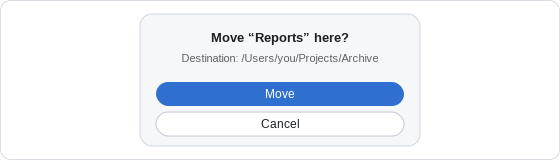
A move asks first, even before this. Cut → Paste always confirms where it is going, naming the full destination, so a paste aimed at the wrong folder is caught before anything moves. A copy doesn't ask: the original stays where it was either way.
Names that already exist
When some of the names you are pasting already exist at the destination, Kata Shell asks once, before anything is copied — for all of them together.
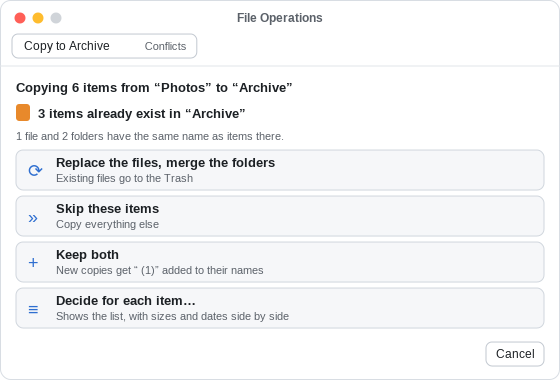
| Choice | Does |
|---|---|
| Replace the files, merge the folders | A file takes the existing one's place, and the existing file goes to the Trash, so you can put it back. A folder's contents go into the existing folder |
| Skip these items | Leaves them out and copies everything else |
| Keep both | The new copies get " (1)" added to their names |
| Decide for each item… | Opens the list below |
| Cancel | Nothing is copied |
Use case — updating a backup. You copy this month's Photos folder onto the backup card, which
already holds a Photos folder from last month. Replace the files, merge the folders adds the new
photos to the existing folder and refreshes any photo you have edited since; last month's photos that
you didn't copy again stay where they are.
Use case — keeping both versions. You paste report.txt next to an older report.txt and want
to compare them. Keep both keeps the old one untouched and names the new one report (1).txt.
Deciding for each item
Decide for each item… lists every clash, with the new and the existing item's size and date side by side, and a choice per item. For all sets every row at once; you can then change single rows. With only one clash, the list is shown straight away.
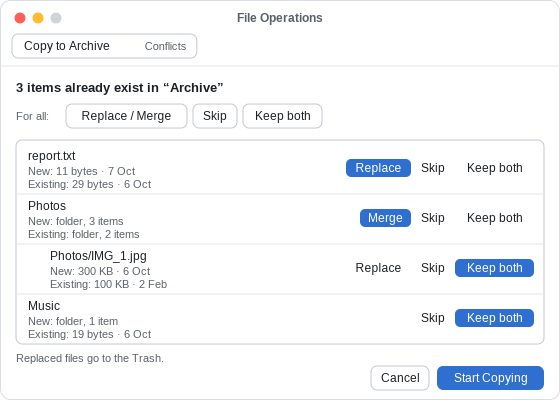
- A folder set to Merge shows its own clashes beneath it — files inside it whose names exist in the existing folder. A folder inside it that already exists simply merges, without a question, as in Explorer.
- A file and a folder with the same name offer only Skip and Keep both. One never replaces the other, so a whole folder can't be lost by accident.
- Nothing is chosen for you that could lose something: a row you don't touch is Keep both.
- A failed replace loses nothing. The new copy is written first under a temporary name; the existing file goes to the Trash only once the copy is complete.
Use case — mixed answers. Your Photos folder clashes with one on the card, and one picture in
it, IMG_1.jpg, was edited on the card itself. Set Photos to Merge, then its IMG_1.jpg row
to Keep both: everything else merges, and your edited picture survives next to the new one.
Pasting into the folder an item came from never asks — that is how you duplicate something, and the copy is simply named " (1)", as Explorer's "– Copy" is.
Several pastes at once
Pastes run side by side, each in its own tab — unless two write to the same disk. Then the later one waits, and its tab says Queued, "Waiting for the operation already writing to … to finish." It starts on its own when the first is done or cancelled.
Why: two copies onto one SD card at the same time are slower than one after the other, because the card has only one write speed to share. A copy to the card and another to the internal disk don't slow each other, so they run together.
While it copies
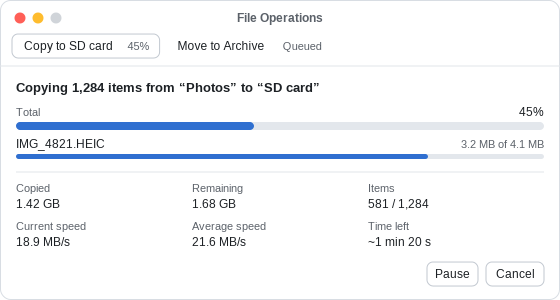
| Shows | Means |
|---|---|
| Total | How much of all the data has been copied |
| The current file's bar | How far into the file being copied now — useful with large files |
| Copied / Remaining | Data so far, and what is left |
| Items | Items finished out of all items |
| Current speed | The last two seconds |
| Average speed | Since the start, leaving out time spent paused or waiting for you |
| Time left | An estimate from the last few seconds' speed |
Items are copied in the order the list shows them.
- Pause holds the copy — mid-file too — until Resume. The tab says Paused.
- Cancel stops it. A partly copied file is removed; then you decide about what already arrived — see Cancelling and rolling back.
Use case — the disk gets busy. You are copying a large folder to an external drive and need the drive for something else for a minute. Pause, do it, Resume: the copy continues where it was, without starting the file again.
Not enough space
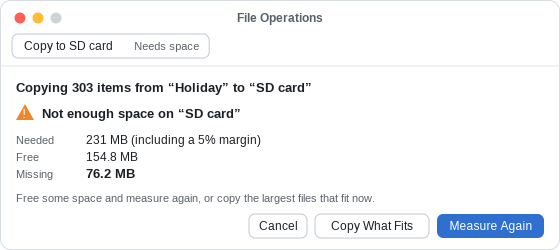
Before anything is written, Kata Shell checks that the destination has room — including a 5% safety margin, and the hidden companion files that FAT- and exFAT-formatted cards and USB sticks need for macOS file information. If there isn't enough, nothing is copied yet, and you choose:
| Choice | Does |
|---|---|
| Measure Again | Checks the free space again — for when you have just made room |
| Copy What Fits | Copies the largest file that fits, measures again, and repeats; when nothing more fits, you are asked again |
| Cancel | Stops; whatever was copied so far stays |
Use case — making room as you go. The card is 76 MB short. Delete some old videos from it in the main window, then Measure Again: if it now fits, the copy simply starts. Or choose Copy What Fits to get as much across now as the card holds, and free space for the rest while it copies.
If the disk fills up anyway — something else wrote to it meanwhile — the partly copied file is removed and you get the same choices. That file is copied again from the start once there is room, never continued halfway.
Files too large for the destination are left out before starting. A FAT32 card cannot hold a file of 4 GB or more; such a file is listed with the reason instead of failing after minutes of copying.
When something can't be copied
Kata Shell doesn't stop at the first item it can't copy. It sets it aside and copies everything else. At the end, the items that didn't make it are listed with the reason for each, and you decide — for all of them, some, or one:
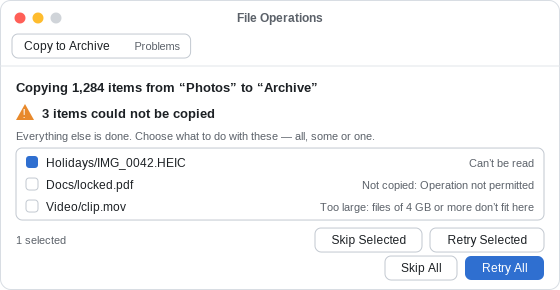
- Retry runs the chosen items again — useful once you have fixed the cause.
- Skip leaves them out.
- Tick items to act on some; Skip All and Retry All act on all.
Items that can't succeed on a second try — a file too large for the destination, a folder copied into itself — can only be skipped. Retry All leaves them out, and they are listed when the copy finishes.
Use case — a permission problem. One photo is "Can't be read" because its permissions shut you out. Everything else is already on the card. Fix the photo's permissions — in Terminal, or Finder's Get Info — then tick it and Retry Selected: it is copied, and the tab finishes.
Cancelling and rolling back
When you cancel and something has already been copied, you choose:
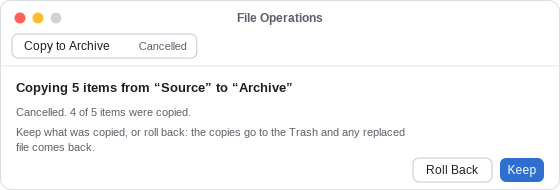
- Keep — what arrived stays. This is the default.
- Roll Back — undoes this paste, in a tab of its own: copies go to the Trash, and any file the paste replaced comes back from the Trash; moved items go back where they came from, under their original names.
Only what this paste did is undone. A folder it merged into stays, with everything that was already in it — only the items this paste put there are removed. A rollback is an ordinary operation: it shows its progress, checks space, asks about names and lists anything it could not do, like any paste. If nothing had arrived yet, there is nothing to choose and the tab only says so.
Use case — the wrong destination. Halfway through copying your photo library you notice it is going to the wrong card. Cancel, then Roll Back: the card is back as it was — including the files the paste had replaced — and you can paste again where you meant to.
Closing the window, or quitting, while it copies
Closing the window or quitting stops the copies, so both ask first.
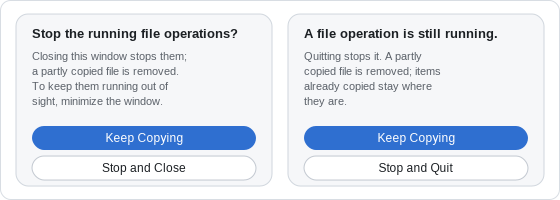
- Keep Copying — the default — changes nothing.
- Stop and Close / Stop and Quit stops every operation. The file that was halfway through is removed; everything already copied stays.
To keep copies running out of sight, minimize the window (the yellow button) instead of closing it. Window ▸ File Operations brings it back at any time.
When it finishes
- Done — everything arrived, or was skipped by your choice: the tab closes by itself a moment later, and the items that arrived are selected in the list if you are still looking at that folder.
- Some items were left out before starting — too large for the destination, say: the tab stays, lists them with the reason for each, and waits for Close.
- Failed — the destination could not be used at all, for instance a disk that was ejected: the tab says why, and nothing was copied.